Account
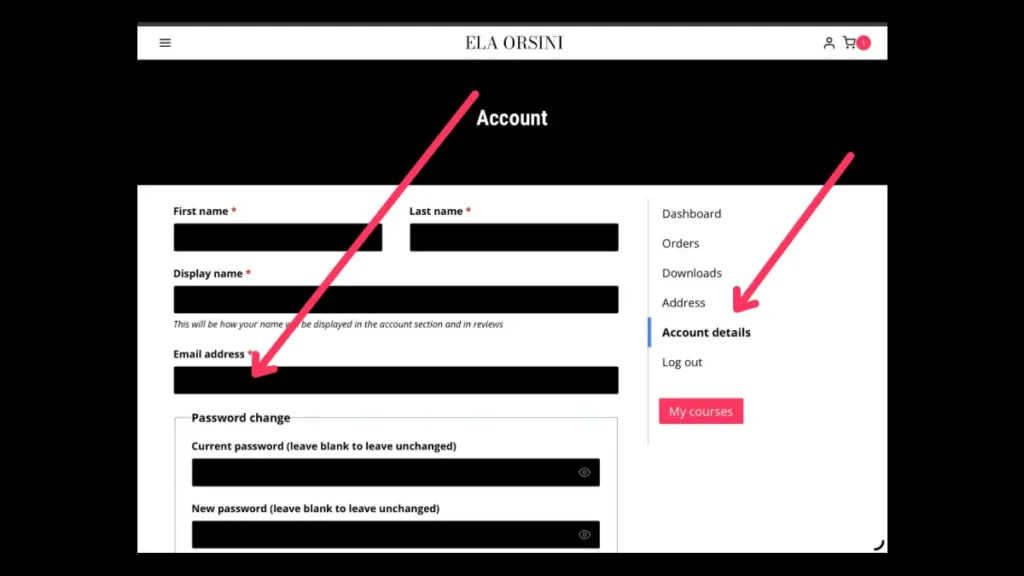
To update your email, go to your Account settings and select Account details. Simply enter your new email address and click Save changes.
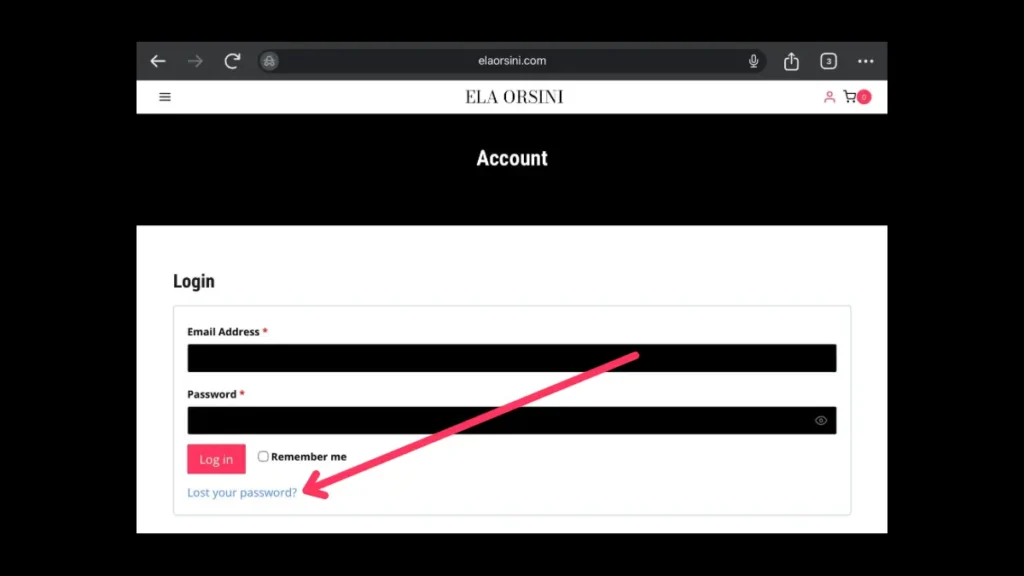
On the Login page, click Lost your password? and enter your registered email address. We will send you an email with a link to create a new password. If you don’t see it in your inbox, please check your spam folder.
First, please wait a few minutes and check your Spam or Promotions folders. If the email still hasn’t arrived, ensure that you entered the correct address. If you need further help, feel free to contact our support team.
If you cannot log in because you’ve lost access to your registered email, please contact us at contact@elaorsini.com. In your message, please provide your previous email address and the new one you’d like to use. We will help you verify your identity and restore access to your account.
Payments & Orders
Learning Space
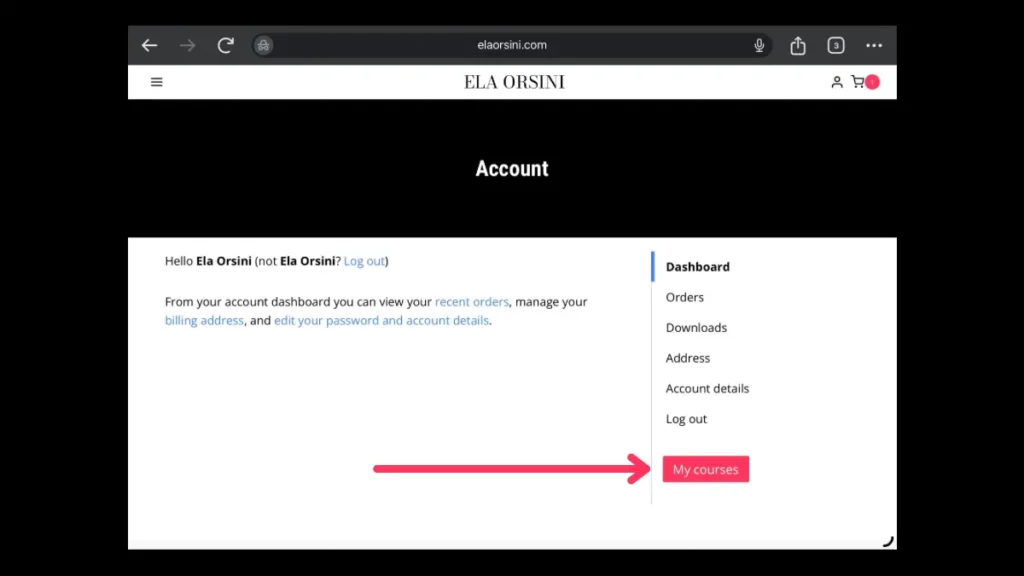
Once you log into your Account, you will see your personal dashboard. To start learning, simply click on the My Courses button, which will take you to your learning space. From there, just click on the title of the course you wish to open, and you can begin your lessons immediately.
To ensure you master the material step-by-step, the lessons are unlocked sequentially. Each new lesson becomes available only after you click the Mark Complete button at the end of the previous one. This helps you follow the correct construction process without missing any vital details.
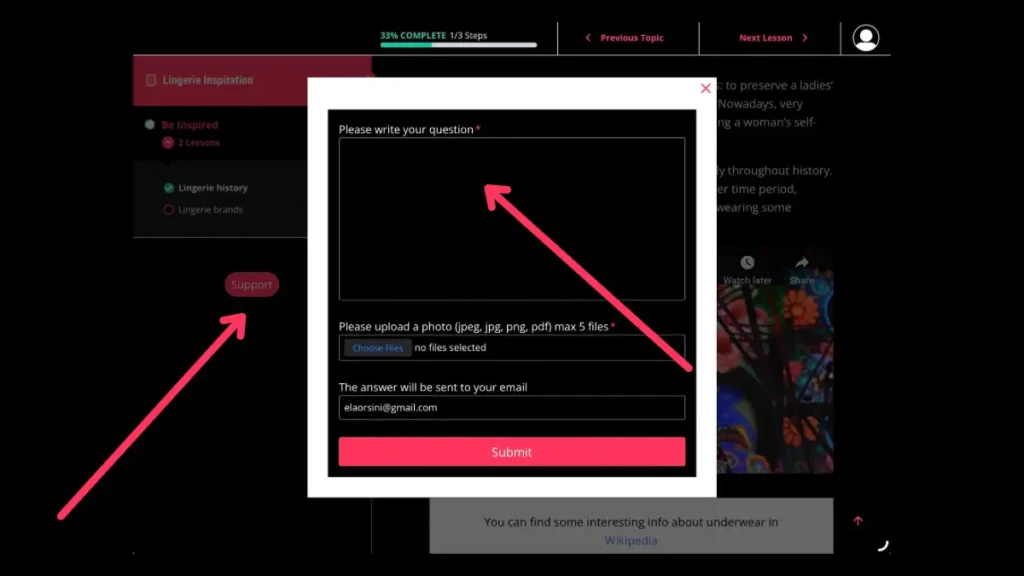
A Support button is available in the Learning Space on the left sidebar on the lessons (located just below the lesson list). Clicking this button opens a form where questions can be submitted.
If a lesson includes additional resources, you will see a Materials tab within that lesson. This tab contains relevant PDF guides, templates, or helpful links. If you don’t see the tab, it means there are no supplementary files for that specific lesson.
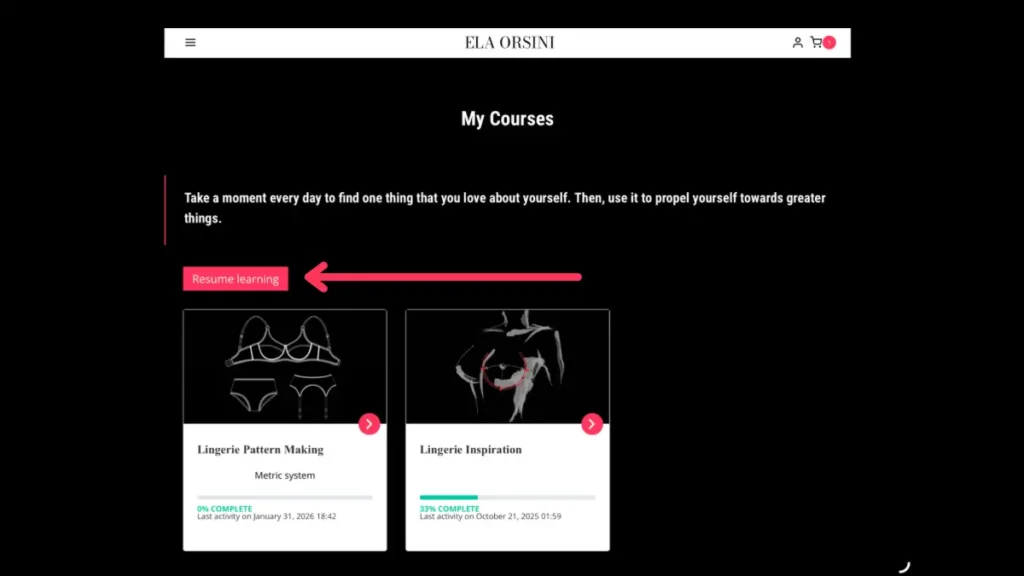
You don’t need to worry about remembering your last lesson. On the My Courses page, you will find a Resume learning button. Clicking it will automatically take you back to the last page you visited within the Learning Space — whether it was a specific course, topic, or lesson.
Digital Products & Downloads
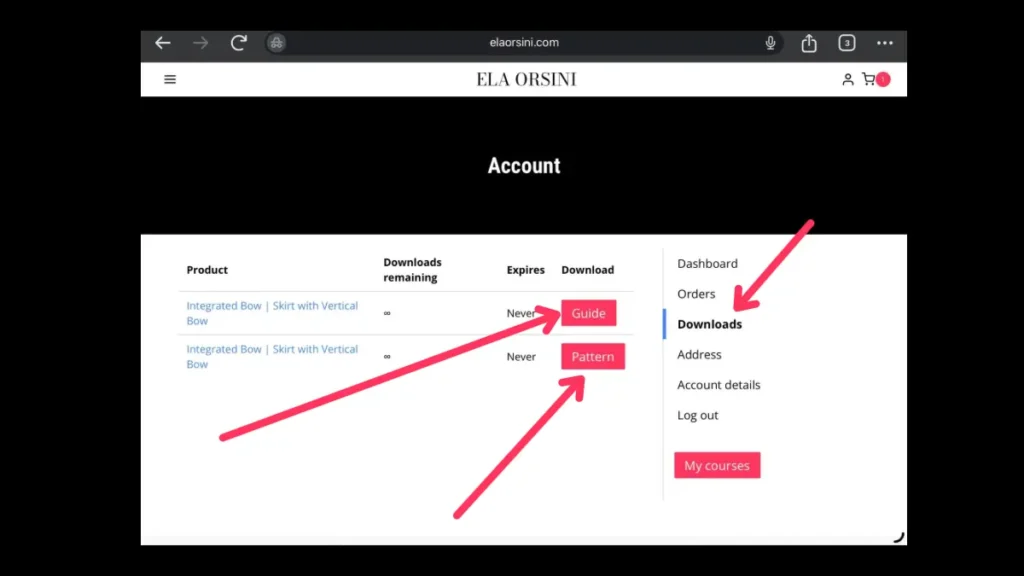
All purchased PDF files are available in the Downloads section of your Account. Simply log in and select the file you wish to save to your device. Access is granted immediately after the payment is successfully completed.
Access to purchased materials is provided on a lifetime basis, provided that the account remains active. Please note that accounts with no login activity for more than two years may be subject to removal. For more detailed information, please refer to the Terms.
To view and print the guides, you will need any standard PDF reader. Most modern devices have this built-in, but you can also use free software like Adobe Acrobat Reader. If you are using a mobile device, please ensure you have a PDF viewer app installed to access the files correctly.
Yes, all guides are formatted for easy printing on A4 paper.
Standard drafting tools are required: a pencil, a ruler, a measuring tape, and paper. Each guide includes a 1:2.5 scale base pattern in PDF format. Printing this pattern allows for convenient practice in a smaller scale before moving to full-size drafting.

To complete your first practice session, simply print the scale pattern and follow the step-by-step instructions in the guide, reducing the measurements provided in the instructions by 2.5 times. Working in scale is a time-efficient and resource-saving way to master the creative techniques before working on full-scale projects.
